
此页面尚未翻译。以下正文为英文。
Rules
Home · Preferences · User guide · Configuration reference · CLI & Diagnostics
Rules define what Tessera does when windows open: leave them floating, or open them on a specific workspace. Creating a rule moves nothing unless you apply it immediately.
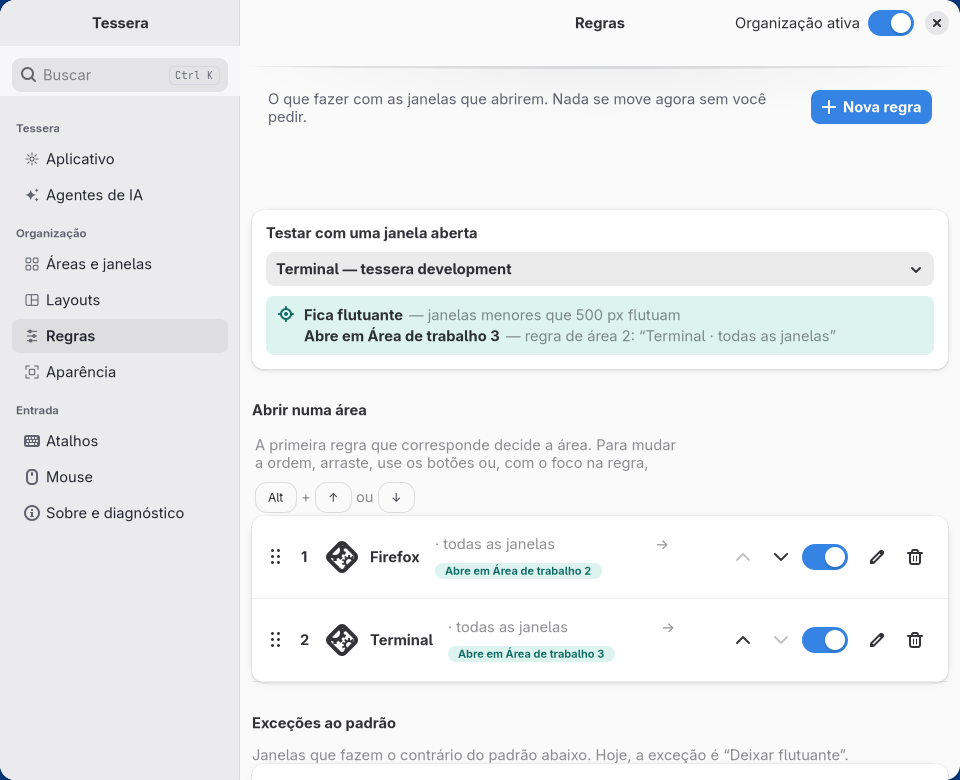
Rules page of the preferences. Profile: GNOME (Wayland). Theme: light. Captured from the real app in a private virtual display (Xvfb) on a Linux host, not in a GNOME session. The interface language of the capture is Brazilian Portuguese.
What a rule does
A rule has a When and a Then.
- When selects the application and which of its windows match. Enter the window class, or pick an open window to fill it in. Choose All from this application, Title contains, or Title is exactly. Preferences matches title text literally, so dots and parentheses are not regular expressions.
- Then says what happens: keep the window floating, or Open on workspace. A rule can also let a window join the layout when the default is to leave windows floating.
Save rule stays off until the rule has an application and an effect, and the line under it says what is missing. If Also apply to these windows now is unchecked, the rule applies only to new windows.
Two helpers enter the application without you knowing its class. Choose an open window… lists open windows, and Click a window lets you click a target window. Click a window appears only on systems where Tessera can request a click, such as XFCE. Otherwise, tessera debug apps prints the class names.
The default for every other window
Under For every other window you choose what happens to windows no rule mentions:
| Choice | Meaning |
|---|---|
| Organize | They join the layout, apart from the exceptions. |
| Leave floating | They stay free, apart from the exceptions. |
The list Exceptions to the default holds the windows that do the opposite of that choice. In the configuration file this is floating: together with floating-is-blacklist:
- Blacklist mode (
floating-is-blacklist: true, the default): every window tiles except those matchingfloating:. - Whitelist mode (
floating-is-blacklist: false): every window floats except those matchingfloating:.
Order
Tessera tries rules under Open on a workspace from top to bottom. The first matching rule decides the workspace. To change the order, drag a rule or click Move the rule … earlier or Move the rule … later. You can also press Alt+↑ and Alt+↓ while the rule has focus. Tessera saves the new order immediately and announces it (”… is now workspace rule 2.”).
Rules apply to windows that open after you create the rule. Tessera does not move already-open windows or sticky windows. If the window system does not move the window, Tessera retries once and stops. The failure appears under warnings on About and diagnostics. If you move the window yourself after it opens, Tessera leaves it where you put it. If a rule targets a missing workspace, Tessera reports an error and moves nothing.
Tessera rechecks floating rules for every window immediately. Switching a floating rule off or on retiles open windows. Switching a workspace rule off does not move back a window it already placed.
Test, switch off, undo
- Test a rule with an open window reports whether a chosen window floats or joins the layout, and why. It also reports which workspace the window opens on and which rule decides it. It changes nothing.
- Every rule has an enable switch. Disabled rules remain saved (
enabled: false), and Tessera ignores them when new windows open. - Undo restores a removed rule, with all its fields and in the same position.
Real-world examples
1. Blacklist mode (tile by default, float utilities & popups)
Keep browsers, terminals, and editors tiled, while floating volume mixers, calculators, password-manager popups, and Picture-in-Picture windows:
floating-is-blacklist: true
float-small-windows: true
small-window-size: 500

floating:
  - pavucontrol
  - gnome-calculator
  - "1Password*"               # glob: matches 1Password, 1Password Helper, etc.
  - id: Firefox
    window-titles:
      - "^Picture-in-Picture$" # regex: exact title match
      - "Library|Page Info"    # regex: matches either title
  - id: "org.gnome.*"          # glob: matches any GNOME app ID
    role: dialog               # only dialog windows of those apps
2. Whitelist mode (float by default, tile only focused work apps)
If you prefer a traditional floating desktop and only want terminals, editors, and browsers tiled:
floating-is-blacklist: false

floating:
  - Alacritty
  - kitty
  - code
  - Firefox
3. Workspace assignments (first match wins)
Send specific applications or specific window titles to dedicated workspaces (zero-based: 0 is workspace 1, 1 is workspace 2). Put more specific title rules before broader application rules:
workspace-assignments:
  - id: Firefox
    window-titles: ["Invoice", "Billing"]
    workspace: 2               # workspace 3
  - id: Firefox
    workspace: 0               # workspace 1 for all other Firefox windows
  - id: Slack
    workspace: 1               # workspace 2
  - id: Thunderbird
    workspace: 1
    enabled: false             # temporarily disabled without deleting
4. Platform-specific identity matching
Use identity: when two apps share a generic class name, or to target a macOS bundle ID or Windows process name. Supported keys are wm_class, bundle_id, process_name, and app_user_model_id. You can also add role: (normal, dialog, modal, desktop, dock, or splash):
floating:
  - identity:
      bundle_id: "com.apple.systempreferences"
  - identity:
      process_name: "Taskmgr.exe"
  - identity:
      wm_class: "jetbrains-*"
    role: splash
Matching semantics in tessera.yml
- Application names (
id/identity): Tessera matches against the window class or instance, case-insensitively, with*as a wildcard for any sequence of characters. window-titlesintessera.yml: Tessera treats values as unanchored, case-sensitive regular expressions (Mailalso matchesMail - Inbox). If an older configuration leaves a*glob in a title, Tessera reports a warning instead of converting it silently. When you add a title rule in the Preferences UI, Tessera escapes literal text into the equivalent regex.- Small windows:
float-small-windowsandsmall-window-size(default500) float windows automatically when both width and height are below the threshold. See Configuration reference for all keys.
Windows Tessera never moves
Docks and panels, modal dialogs, fixed-size windows, and fullscreen or minimized windows keep the frame the window system gave them. tessera debug windows --include-unmanaged displays the reason in the UNMANAGED_REASON column.