
Esta página aún no está traducida. El texto siguiente está en inglés.
Built-in layouts
Home · User guide · Preferences · Custom JavaScript layouts · Shortcuts · Configuration reference
Tessera provides 18 built-in arrangements. Select layouts in Preferences, from the tray menu (Tray and HUD), or in Configuration reference. A layout computes requested frames. The active window manager may enforce its own minimum sizes or constraints. See Custom JavaScript layouts for user-written JavaScript arrangements.
All 18 arrangements
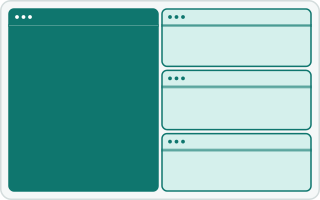
tall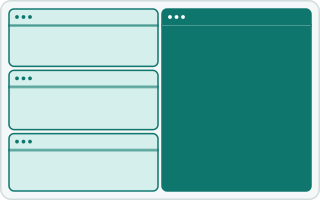
tall-right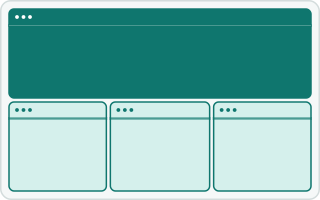
wide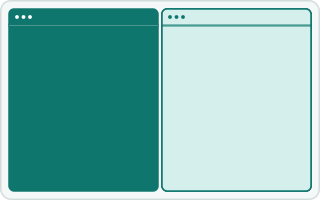
two-pane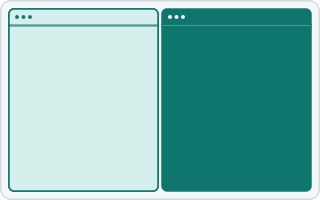
two-pane-right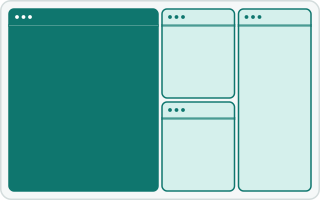
3column-left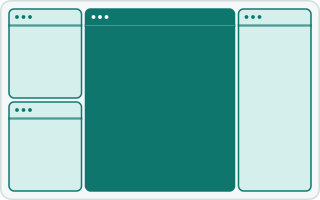
middle-wide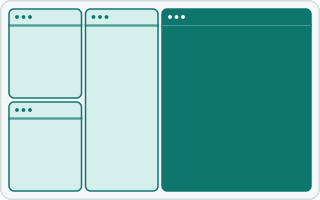
3column-right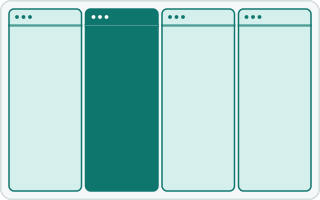
4column-left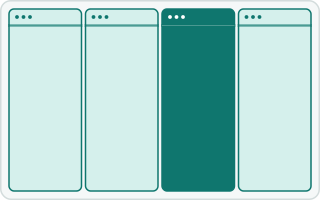
4column-right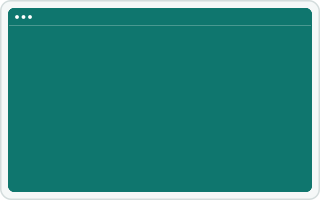
fullscreen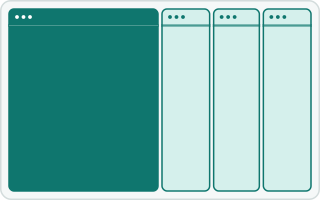
column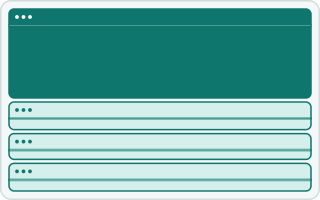
row
floating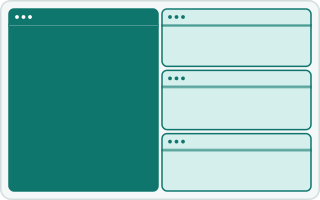
widescreen-tall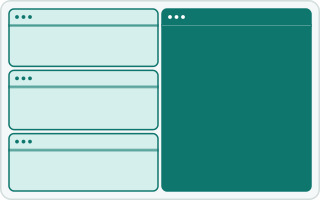
widescreen-tall-right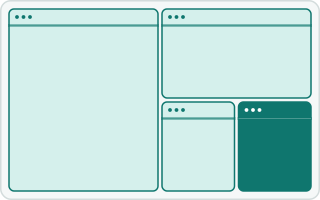
bsp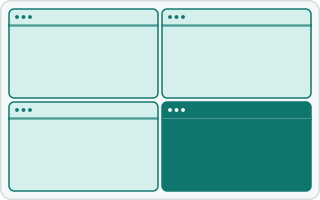
gridHow layouts behave
- Main and secondary panes: layouts such as
tall,tall-right,wide,two-pane, andwidescreen-talldivide the work area into a main pane and a secondary pane. Adjust the split ratio with mod1+H / mod1+L, and change how many windows sit in the main pane with mod1+, / mod1+.. grid: Tessera’s own grid layout. In a landscape or square area, it fills columns from top to bottom. In a portrait area, it fills rows from left to right. Extra cells go into the last columns or rows. Main-pane count and ratio do not affect it.- Four-column layouts:
4column-leftand4column-rightuse independently adjustable column weights rather than the single main-pane ratio. floating: leaves all windows at their current positions and sizes without rearranging them. To float only specific apps, use Rules instead.
Switching, cycling, and per-workspace memory
- Your cycle: the default cycle is
tall,wide,fullscreen,column. With the default Shortcuts, mod1+Space (Alt+Shift+Spaceon Linux/Windows,Option+Shift+Spaceon macOS) cycles forward and mod2+Space cycles backward. - Direct shortcuts: mod1+A, S, D, F jump directly to
tall,wide,fullscreen, andcolumn. You can bindselect-<layout>-layoutfor any other built-in layout. - Per-workspace memory: with
per-workspace-layouts: true(the default), Tessera remembers the active layout, main-pane ratio, and main-pane count separately for each workspace and monitor. - Spacing and overflow: configure margins between windows, screen-edge padding, and overflow limits (
window-max-count) in Preferences (Appearance and Layouts pages). You can also set them in Configuration reference.
Previews and animations
The Preferences window contains live layout previews. Each layout above also has an animated SVG that shows four windows being added one at a time. The animations use a 0.5 main ratio and one main window. The highlighted window is the main window, or the focused window for layouts without a main pane. The SVGs adapt to light and dark themes.
The SVGs live in the wiki under images/layouts/ and use relative paths, so they render on this wiki and on the documentation site. Each SVG uses its layout key as its filename, except 3column-left and 3column-right use three-column-left.svg and three-column-right.svg, and 4column-left and 4column-right use four-column-left.svg and four-column-right.svg.
The generator writes to crates/tessera-ui/assets/layouts/, which the application bundles (see Architecture). To regenerate the animations and sync the wiki, run these commands from the app checkout root:
cargo run -p tessera-ui --example generate_layout_svgs
cp crates/tessera-ui/assets/layouts/*.svg ../wiki/images/layouts/
crates/tessera-ui/tests/layout_svgs.rs checks the copy under crates/ against the generator. In the homepage repository, node scripts/check-wiki.mjs checks wiki/images/layouts/ against src/assets/app/layouts/ and exits non-zero on any difference.