
Esta página aún no está traducida. El texto siguiente está en inglés.
Preferences
Home · User guide · Shortcuts · Rules · Configuration reference · UI Architecture
You can configure almost every Tessera setting in the Preferences window. Tessera writes each valid change to tessera.yml immediately, so the window has no Save button.
Open Preferences with tessera or tessera --preferences, from Preferences… in the tray menu (Tray and HUD), or from your application launcher.
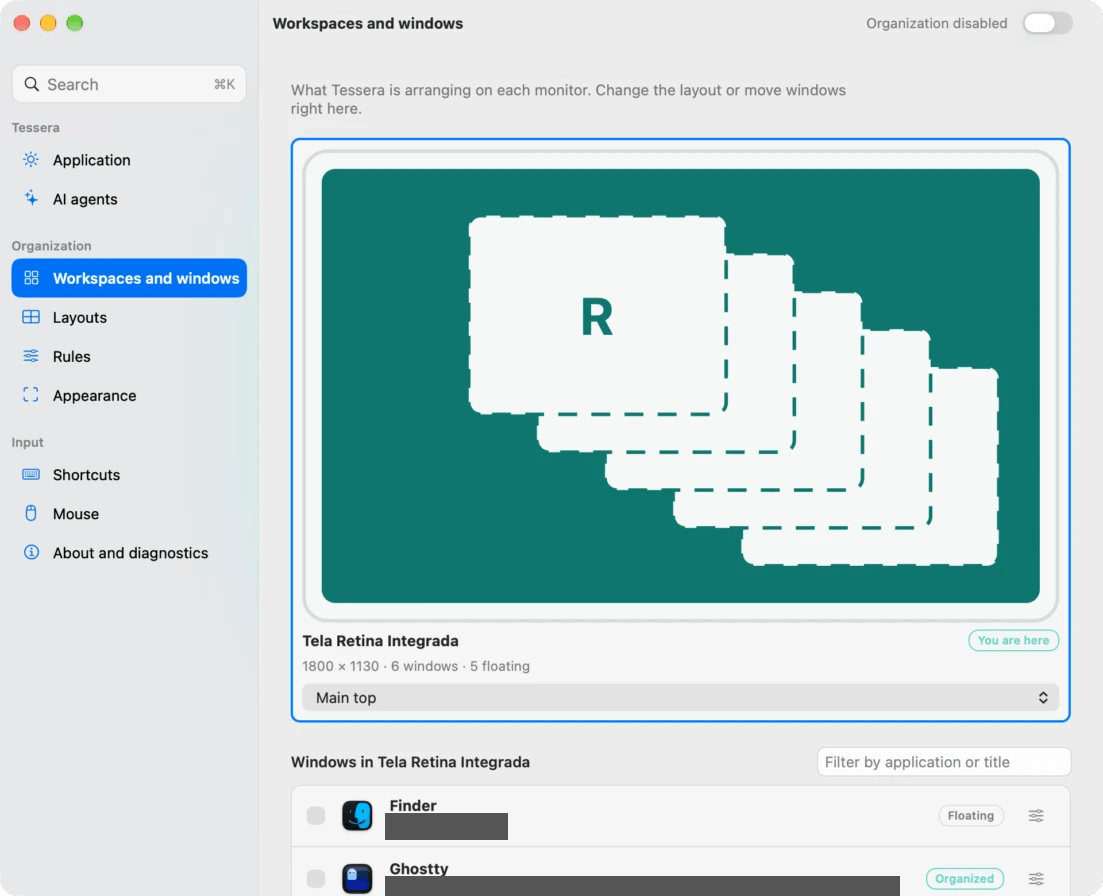
Workspaces and windows page. Profile: macOS. Theme: light. Captured from the real app on a Mac host. Interface language: Brazilian Portuguese.
The nine pages
The sidebar lists the pages in these groups, in this order:
| Group | Page | What it holds |
|---|---|---|
| Tessera | Application | How Tessera presents itself: interface language, Start at login, tray/menu-bar icon visibility, and Notices (HUD vs. system notifications). See Start at login and Tray and HUD. |
| Tessera | AI agents | Enable or disable the local MCP server, choose Read-only or Control mode, and filter exposed tools. See AI agents. |
| Organization | Workspaces and windows | Live view of organized windows per workspace or monitor. Switch layouts or move windows between monitors or workspaces. |
| Organization | Layouts | Configure Your cycle, On startup, New windows and adjustments, and When windows do not fit. Also manage Custom layouts and Layouts folder. See Layouts and Custom JavaScript layouts. |
| Organization | Rules | Configure per-window rules and the default policy (For every other window). See Rules. |
| Organization | Appearance | Spacing and chrome for organized windows: Between windows (window-margins, window-margin-size), Screen edges (outer padding), Usable area (panel/dock insets), and Title bars (window-decorations). |
| Input | Shortcuts | All 65 built-in actions plus custom layout bindings, conflict detection, and the interactive shortcut recorder. See Shortcuts. |
| Input | Mouse | Optional pointer-driven focus and drag behaviors. Every gesture has a keyboard equivalent. |
| (end of list) | About and diagnostics | Version, active backend capabilities, placement warnings, and Copy report for bug reports. See CLI & Diagnostics. |
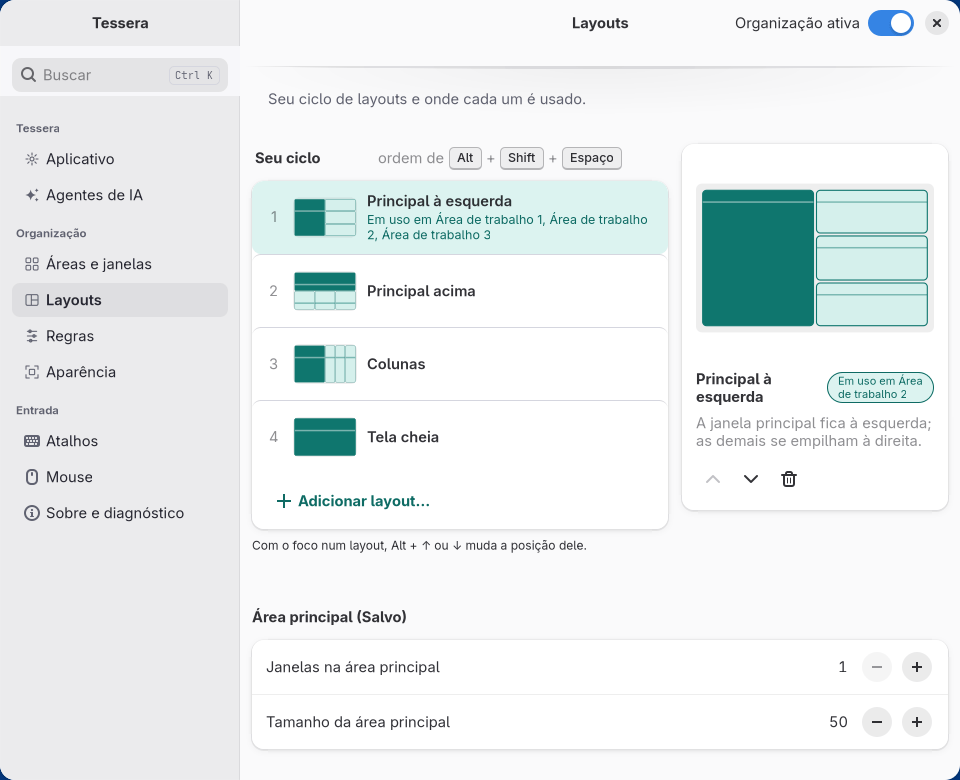
Layouts page. Profile: GNOME (Wayland). Theme: light. Captured from the real app in a private virtual display (Xvfb) on a Linux host. Interface language: Brazilian Portuguese.
Mouse options
The Mouse page has four options, all off by default:
| Option | Effect |
|---|---|
Focus follows mouse (focus-follows-mouse) |
The window under the pointer gets focus. |
Mouse follows focus (mouse-follows-focus) |
The pointer jumps to a newly focused window. |
Mouse swaps windows (mouse-swaps-windows) |
Dragging a window onto another swaps their places in the layout. |
Mouse resizes windows (mouse-resizes-windows) |
Dragging a window border keeps the new size on the next retile. |
Live search
The search field above the content narrows the list as you type. Press Ctrl+K from anywhere in the window to jump to it (Command+K on macOS).
- Search matches each word against control labels and related keywords in your language. For example, searching “spacing” finds window margins and screen padding.
- Exact label matches rank above related keywords.
- Each result names its page (“In Layouts”). Selecting a result opens that page and focuses the control.
- Tab moves from the search field to the first result, and Esc closes the search or window. Clearing the field brings the page list back.
- When nothing matches, the list displays “Nothing found.” and suggests another search term.
Saved, this session, unavailable
Each control indicates where its state lives:
- Saved: Tessera writes the value to
tessera.ymlimmediately, and it persists across restarts. - This session: applies only to the running session and resets on the next start. Live main-pane count and ratio adjustments on the Layouts page use this state.
- Unavailable: the active backend or platform does not support this setting yet.
Narrow and responsive layout
At 680 pixels wide or less, the window switches to a compact layout. A Section dropdown replaces the sidebar, and row controls wrap under their labels. This keeps Preferences usable on narrow monitors and half-screen tiles.
What changes on each system
| System | Difference |
|---|---|
| Windows | Native WinUI 3 Preferences window (with Win32 tray, HUD, notifications, and autostart). No AI agents page: Windows does not ship the tessera mcp bridge. |
| macOS and Windows | Workspaces and windows displays monitors side by side instead of workspace tabs. The Shortcuts page omits commands that move windows between workspaces because these systems do not expose them. |
| macOS | Appearance omits the Title bars group because the macOS adapter declares no decoration operations. The tray menu links to Accessibility settings when permission is missing. |
| Flatpak (Linux) | Preferences hides Start at login and explains why sandboxed Flatpaks cannot manage host systemd units directly. |
| Linux | The interface follows your desktop. It uses GTK 4 with libadwaita on XFCE and GNOME, and Qt 6 with Kirigami on KDE Plasma (Installation and channels). |
For how these native interfaces share state and renderers, see UI Architecture.
Language and visual style
Tessera supports 10 interface languages: en, pt-BR, es, fr, de, it, ru, zh-CN, ja, and ko. The active language follows TESSERA_LANG, then your language setting in tessera.yml, then your system locale, and finally English.
The visual look follows ui-style in tessera.yml (or TESSERA_UI for a single run). See Configuration reference for all keys and values.