
このページはまだ翻訳されていません。以下の本文は英語です。
Shortcuts
Home · Preferences · User guide · Configuration reference · CLI & Diagnostics
Every Tessera command can have a keyboard shortcut. This page lists all of them with their default keys, then explains how to record, customize, disable, and troubleshoot shortcuts in Preferences and tessera.yml.
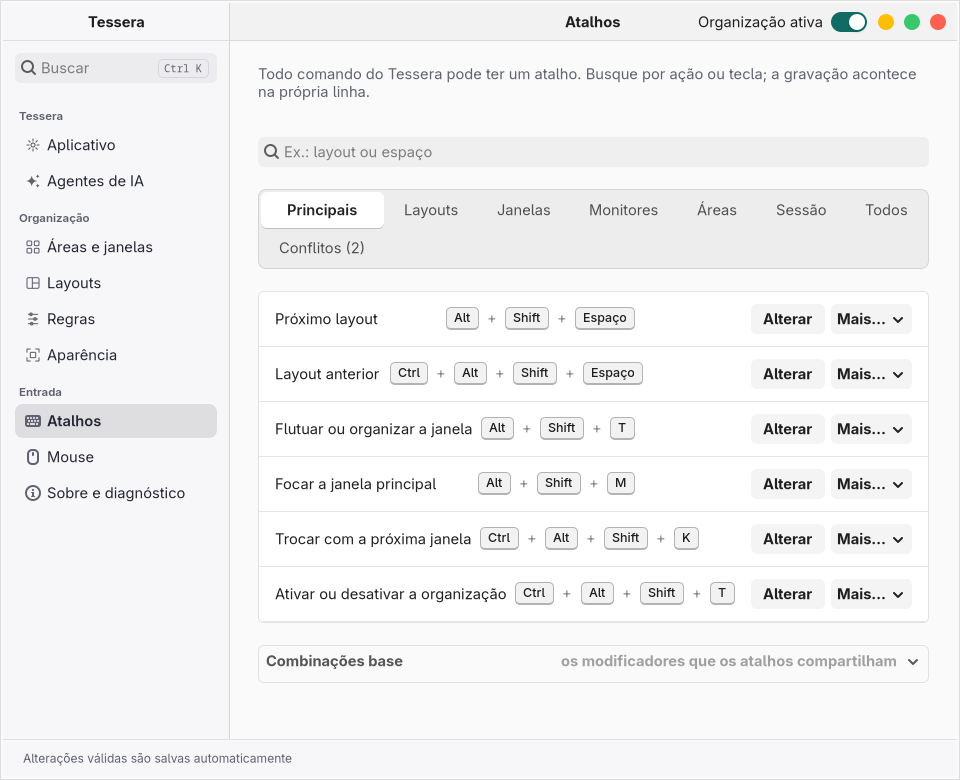
Shortcuts page of the preferences. Profile: XFCE (X11). Theme: light. Captured from the real app in a Linux container with xfwm4 and xfce4-panel. The interface language of the capture is Brazilian Portuguese.
Modifier groups (mod1–mod4)
A shortcut is a base combination plus one key. Two bases ship with Tessera, called mod1 and mod2 in the configuration file:
| Base | Linux and Windows | macOS |
|---|---|---|
mod1 |
Alt+Shift | Option+Shift |
mod2 |
Alt+Shift+Ctrl | Control+Option+Shift |
Two more bases, mod3 and mod4, are unassigned by default and free for your own use.
In tessera.yml, modifier names are ctrl (control), alt (option), shift, and super (command, which is Command on macOS). In the Preferences shortcut recorder, <Primary> stands for the main shortcut key of the system: Control everywhere except macOS, where it is Command.
Default shortcuts
Tessera’s action table has 65 actions: 30 single actions, 4 direct layout choices, and 31 numbered actions. The numbered actions include 5 to focus a monitor, 5 to move a window, 5 to swap with a monitor, and 16 for workspaces. You can also bind command1 to command4 and select-<layout>-layout for any other layout. The tables list every action, and a single row can represent a numbered family.
| Action id | What it does | Default |
|---|---|---|
cycle-layout |
Cycle layout forward | mod1+Space |
cycle-layout-backward |
Cycle layout backward | mod2+Space |
select-tall-layout |
Use Main left | mod1+A |
select-wide-layout |
Use Main top | mod1+S |
select-fullscreen-layout |
Use Fullscreen | mod1+D |
select-column-layout |
Use Columns | mod1+F |
shrink-main |
Shrink main pane | mod1+H |
expand-main |
Expand main pane | mod1+L |
increase-main |
More windows in the main pane | mod1+, |
decrease-main |
Fewer windows in the main pane | mod1+. |
focus-ccw |
Focus previous window | mod1+J |
focus-cw |
Focus next window | mod1+K |
swap-ccw |
Swap with previous window | mod2+J |
swap-cw |
Swap with next window | mod2+K |
focus-main |
Focus main window | mod1+M |
swap-main |
Swap with main window | mod1+Enter |
focus-screen-ccw |
Focus previous monitor | mod1+P |
focus-screen-cw |
Focus next monitor | mod1+N |
swap-screen-ccw |
Move window to previous monitor | mod2+H |
swap-screen-cw |
Move window to next monitor | mod2+L |
throw-space-left |
Move window to workspace on the left | mod2+B |
throw-space-right |
Move window to workspace on the right | mod2+F |
toggle-float |
Float or organize the window | mod1+T |
toggle-tiling |
Turn organization on or off | mod2+T |
reevaluate-windows |
Rearrange windows now | mod1+Z |
display-current-layout |
Show current layout | mod1+I |
toggle-focus-follows-mouse |
Toggle “activate the window under the pointer” | mod2+X |
relaunch-controller |
Relaunch Tessera (on macOS it starts a new copy of the app and exits) | mod2+Z |
focus-screen-1 … focus-screen-5 |
Focus monitor 1 to 5 | mod1+W, E, R, Q, G |
throw-screen-1 … throw-screen-5 |
Move active window to monitor 1 to 5 | mod2+W, E, Y, Q, G |
throw-space-1 … throw-space-10 |
Move window to workspace 1 to 10 | mod2+1 … 9, 0 |
These actions exist but have no default key:
| Action id | What it does |
|---|---|
enable-tiling, disable-tiling |
Enable or disable organization, as two separate commands (toggle-tiling does both) |
toggle-new-windows-to-main |
Put newly opened windows in the main pane |
increase-window-max-count, decrease-window-max-count |
Raise or lower the maximum number of organized windows by one |
swap-screen-1 … swap-screen-5 |
Alias for throw-screen-1 … throw-screen-5: move active window to monitor 1 to 5 (Preferences uses the same labels as throw-screen-N) |
throw-space-11 … throw-space-16 |
Move window to workspace 11 to 16 |
command1 … command4 |
Send a custom command to a Custom JavaScript layouts script |
select-<layout>-layout |
Switch straight to any other layout, for example select-bsp-layout or select-grid-layout |
toggle-sticky |
Toggle sticky for the focused window. It has no key, and the configuration file does not accept a binding for it yet. |
Workspace actions need a window system that can move windows between workspaces. macOS and Windows do not offer these APIs, so the Shortcuts page omits them.
Record, change and disable in Preferences
On the Shortcuts page each action has a row:
- Filters: Main shows the most used actions, All shows every action, and Conflicts (N) shows only shortcuts the desktop did not grant.
- Search shortcut: searches every action by name or key regardless of the active filter.
- Change: click Change on a row, then press the new key combination. The row saves it under that action’s own key.
- Disable / Restore default: Disable disables the shortcut (
falseintessera.yml). Restore default restores the built-in binding. - Base combinations: opens the four bases (
mod1–mod4) with checkboxes for Ctrl, Alt, Shift, and Super, plus the shortcut count for each base. Checking a box saves the base and updates every shortcut bound to it. The editor refuses a base with Shift alone (“A base combination needs Ctrl, Alt or Super.”). It also refuses an emptymod1ormod2, or an emptymod3ormod4while shortcuts still reference it. - Validation: the editor rejects combinations already used by another enabled Tessera action. It also rejects a Shift-only combination for a key that types a letter.
Real-world YAML examples
1. Redefine mod1–mod4 (avoiding Alt+Shift collisions)
Alt+Shift is a common keyboard-layout switch on Linux. Moving mod1 to Super+Alt and mod2 to Super+Alt+Shift, while dedicating mod3 to layout switches and mod4 to custom layout commands:
mod1: [super, alt]
mod2: [super, alt, shift]
mod3: [ctrl, super]
mod4: [ctrl, alt, super]

select-bsp-layout:
  mod: mod3
  key: b

select-grid-layout:
  mod: mod3
  key: g

command1:
  mod: mod4
  key: 1
2. Rebind actions and disable unused ones
toggle-float:
  mod: mod1
  key: t

throw-space-left:
  mod: mod2
  key: bracketleft

throw-space-right:
  mod: mod2
  key: bracketright

# Disable actions you do not want bound to a key
relaunch-controller: false
toggle-focus-follows-mouse: false
enable-tiling: false
Conflict detection and troubleshooting
When a shortcut does nothing, the Conflicts (N) filter and the status line on the row explain why:
- Already used by … or Another application already holds this combination, so it does not work. Another Tessera action or desktop shortcut owns the combination. Pick another key or change the base group. On XFCE, combinations owned by Xfwm4 or XFCE stay with XFCE (for example,
Alt+Shift+Ctrl+LeftandRightcollide if manually bound in Tessera). See Troubleshooting XFCE. - macOS reserves this combination for a system shortcut, so it does not work.: macOS only. Choose a different combination or disable the conflicting system shortcut in System Settings.
- This key is missing from the current keyboard layout … or The system does not recognize this key …. The key name does not exist in the active keymap.
- This key types text, so GNOME does not allow it as a global shortcut without Ctrl, Alt or Super.: GNOME only. The entry remains in
tessera.yml, but GNOME refuses to register unmodified or Shift-only text keys as global shortcuts. - The shortcuts are not registered with the desktop, so conflicts could not be checked …. The backend is not currently connected or does not report global shortcut registration status.