
このページはまだ翻訳されていません。以下の本文は英語です。
Tray and HUD
Home · Preferences · Shortcuts · User guide · Configuration reference
Tessera reports its status in three places: the system tray menu, an on-screen notice (HUD), and system notifications. On macOS, the system tray is the menu bar. On Windows, it is the notification area.
The tray menu
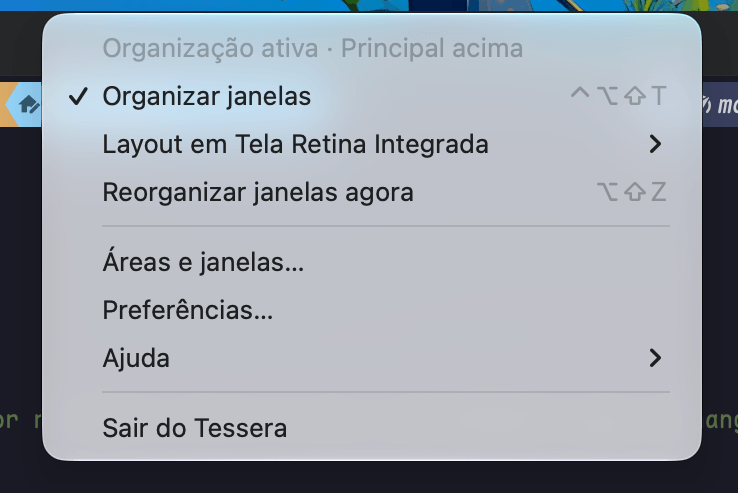
Tray menu. Profile: macOS. Theme: light. Captured from the real app on a Mac host. The interface language is Brazilian Portuguese.
The menu has these entries, in this order:
- Status and active layout (greyed out): “Organizing windows” or “Not organizing windows”, followed by the active layout name.
- Organize windows: a checkbox that pauses or resumes tiling across the session, showing its keyboard shortcut (default mod2+T, see Shortcuts).
- Layout: name: a submenu to choose a layout from your cycle. It ends with All layouts…, which opens the Layouts page in Preferences. Once Tessera identifies the active monitor or workspace, it shows Layout on place.
- Rearrange windows now: triggers an immediate re-layout (same as mod1+Z). Greyed out while organization is paused.
- A separator.
- Workspaces and windows…: opens the Workspaces and windows page in Preferences.
- Preferences…: opens Preferences.
- Help: a submenu with:
- About and diagnostics: opens the diagnostics page in Preferences.
- Copy report: copies the
tessera --debug-infodiagnostic report to the clipboard (see CLI & Diagnostics). - Restore layouts from the configuration…: asks for confirmation (“Restore layouts?”). It then resets your layout cycle and workspace layouts to what
tessera.ymldefines, while keeping your Rules and other preferences. - Restart Tessera: restarts the controller on any system.
- A separator.
- Quit Tessera: exits the controller and restores windows to their original pre-Tessera frames.
Platform notes for the tray icon
- macOS: when Accessibility permission is missing, the first line reads “Organizing paused: Accessibility permission missing”. Organize windows stays unchecked and opens the permission prompt instead. See macOS.
- GNOME (Wayland): the GNOME Shell extension draws Tessera’s panel indicator directly in the top bar, showing the layout icon and shortcut hints (GNOME (Wayland)).
- Windows: uses a native Win32 notification-area icon and menu (Windows).
- Hiding the icon: set
hide-menu-bar-icon: trueintessera.yml, or toggle the tray icon option on the Application page in Preferences. Use this option to control Tessera only with Shortcuts andtessera --preferences.
The same menu on three Linux profiles:
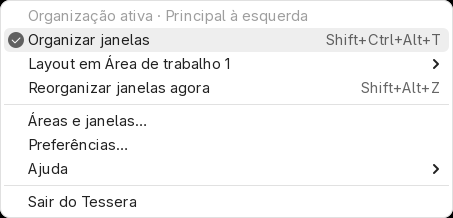
Tray menu. Profile: XFCE (X11). Theme: light. Captured in a Linux container with the real xfce4-panel. Interface language: Brazilian Portuguese.
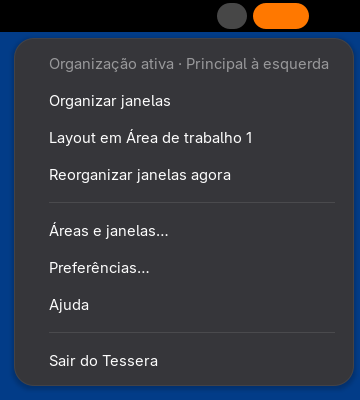
Tray menu. Profile: GNOME (Wayland). Theme: light. Captured in a private virtual screen (Xvfb) on a Linux host. Interface language: Brazilian Portuguese.
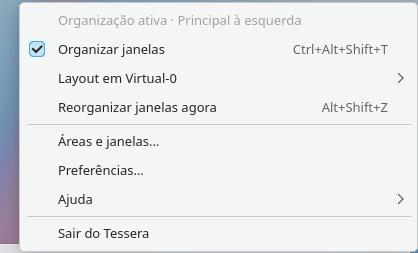
Tray menu. Profile: KDE Plasma (Wayland). Theme: light. Captured in a private virtual screen (Xvfb with xfwm4) on an Arch Linux host, not in a Plasma session. Interface language: Brazilian Portuguese.
The on-screen notice (HUD)
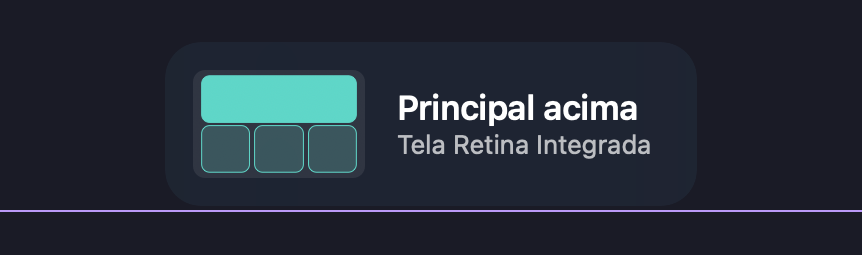
On-screen notice after a layout change. Profile: macOS. Theme: light. Captured from the real app on a Mac host. Interface language: Brazilian Portuguese.
The HUD is a brief floating card centered on the active monitor showing the name and diagram of the layout. On the Application page in Preferences, under Notices:
| Setting | What it does |
|---|---|
| Show notices in | Choose System notifications (sent to the OS notification center, labeled macOS, Windows, GNOME, or Plasma notifications) or Heads-up display (HUD) (the on-screen card). Key: notification-style (system or hud). |
| On layout change | Show the name and diagram of the chosen layout (enables-layout-hud). |
| On workspace change | Show the name of the active workspace when switching (enables-layout-hud-on-space-change). |
| Include window count | Add the number of organized windows to the notice (enables-window-count-hud). |
| Time on screen | Duration from 600 to 5000 milliseconds (hud-duration-ms). |
Other events use the same notice style:
- When the window manager adjusts or rejects a requested size.
- When Tessera cannot place a window.
- When a workspace reaches its window limit (
window-max-count). - When AI agents connect or disconnect.
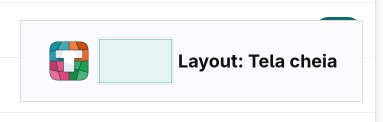
On-screen notice after a layout change. Profile: GNOME (Wayland). Theme: light. Captured in a private virtual screen (Xvfb) on a Linux host. Interface language: Brazilian Portuguese.
Where a Wayland compositor controls overlay positioning, the notice appears where the compositor places it, and Tessera logs that explicit positioning is unavailable.
System notifications
With System notifications selected, Tessera uses your desktop’s notification daemon on Linux, Notification Center on macOS, or Windows toast notifications. The Application page in Preferences includes a button to trigger a sample notice so you can preview how each style looks on your system.